The screenshots show sample data. The app is in English unless German is
picked under More → Settings → Language.
Setting up a device
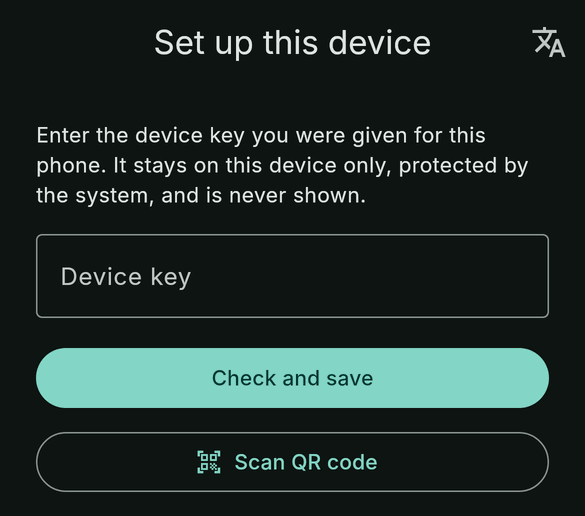
Set up this device
mobile-cloover1-phone, is what the settings screen and the operators’
console show.
- Device key: paste the key, or fill it from a password manager, then tap Check and save. The app keeps the key only if the service accepts it as a device key. The key is never shown again.
- Scan QR code: reads the key with the camera, on the device, straight into the same check. Scan it with the app, never with the phone’s camera app, which would show the key as text.
- Language (the translate icon, top right): English or Deutsch, before a key is set up.
- Screen lock: without a passcode, PIN, pattern or password the app stays locked and shows nothing.
Finding your way
- Pull down on any screen to fetch it again.
- Fresh data: the app fetches every screen’s data in the background when it opens, and a screen asks again only once what it shows is five minutes old. Pull to refresh always asks.
- Old data: the service line always says As of when the data was made. After 30 minutes without new data the badge adds it too, and after six hours the badge turns grey.
- Hidden while recording: lists and charts are hidden while the screen is recorded, mirrored or shared.
Today
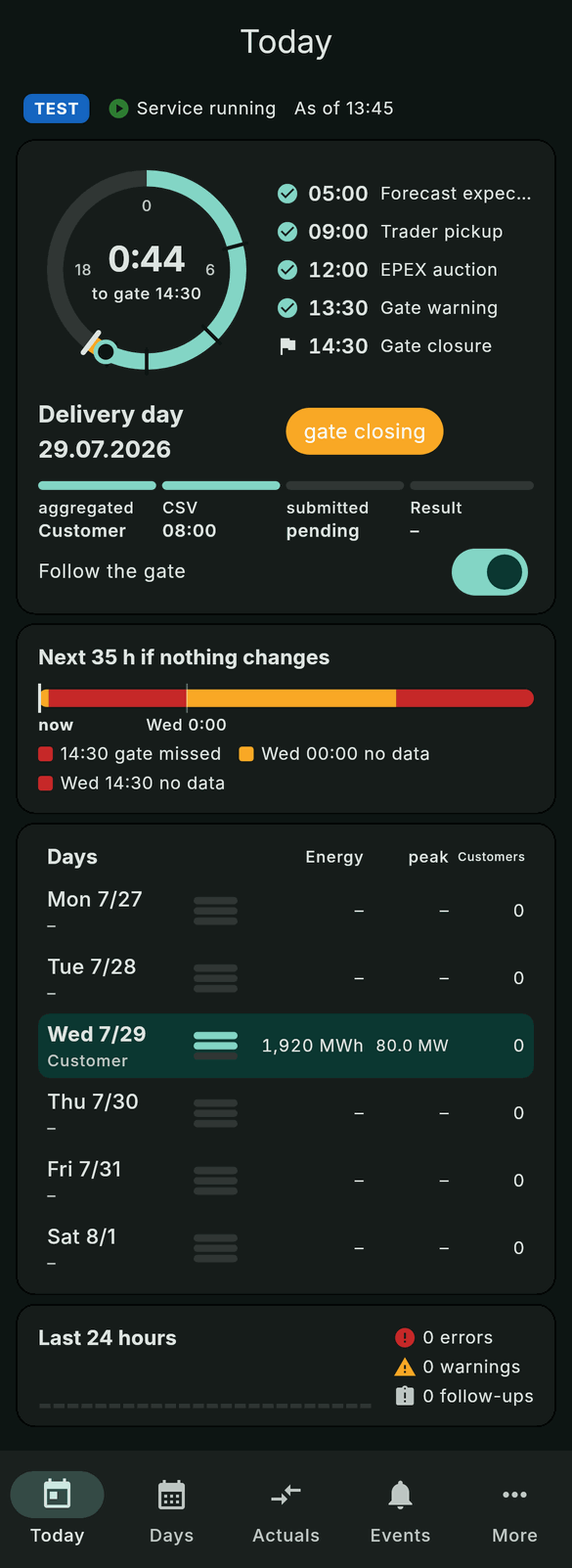
Today
The badge
The service decides the badge; the app shows what it is given, in either language. The full list of rules is in Operator App → The day-ahead badge.
Every state also has its own symbol, because iOS drops the colour on the
lock screen, in StandBy and on a tinted home screen.
Days
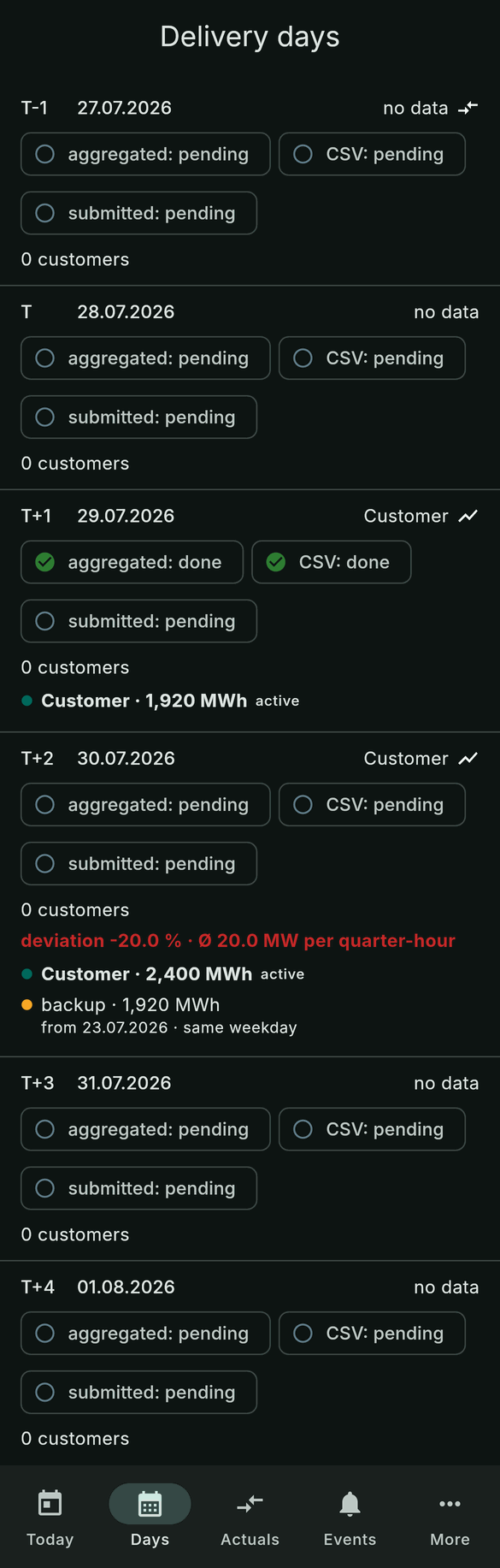
Days
Tap a row:
- A past day (the ⇄ icon) opens Schedule vs. actual for that day.
- A day with a forecast (the chart icon) opens its curves:
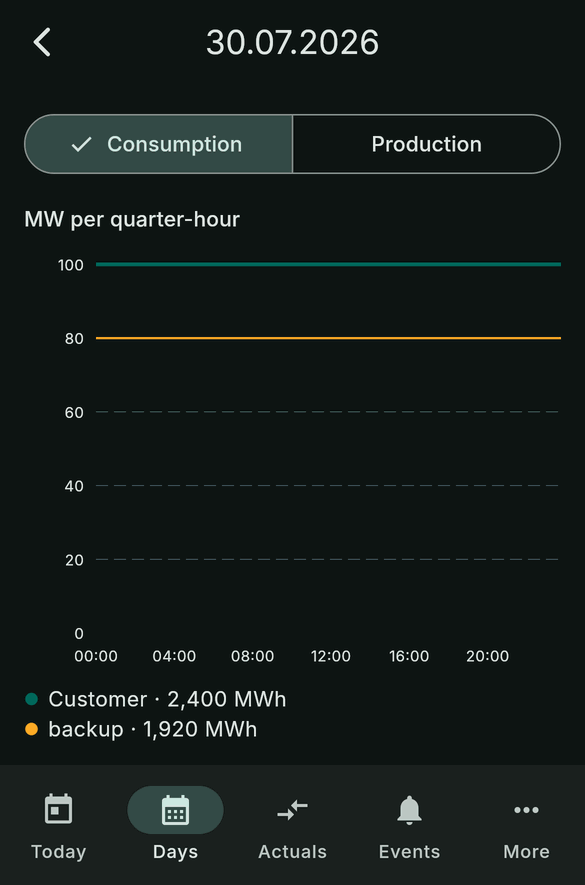
A day's forecast versions as curves
Actuals: Schedule vs. actual
A delivery day’s schedule as the TSO confirmed it, against the actuals from the TSO’s balancing group sum series (BK-SZR), for Germany or one control area. The tab opens on yesterday.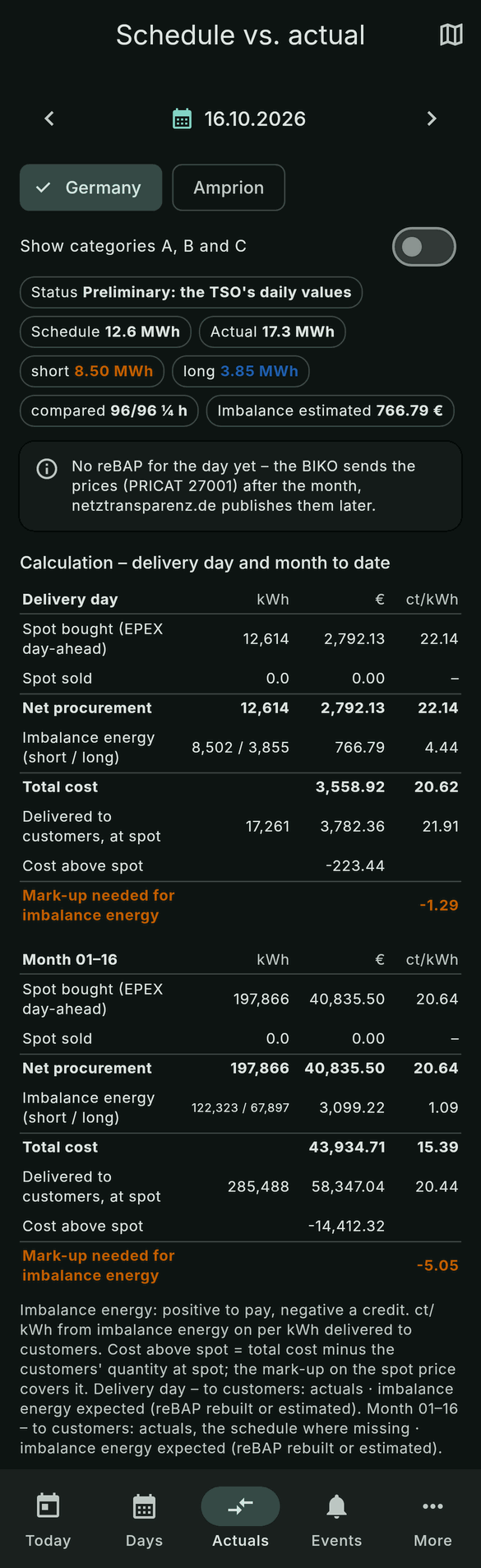
Status and calculation
Calculation, for the delivery day and for the month up to it:
The ct/kWh column divides each row’s euros by its kWh. The note
below the tables says where the customers’ quantity and the imbalance
energy come from: actuals, or the schedule where actuals are missing, and
an expected or a final reBAP.
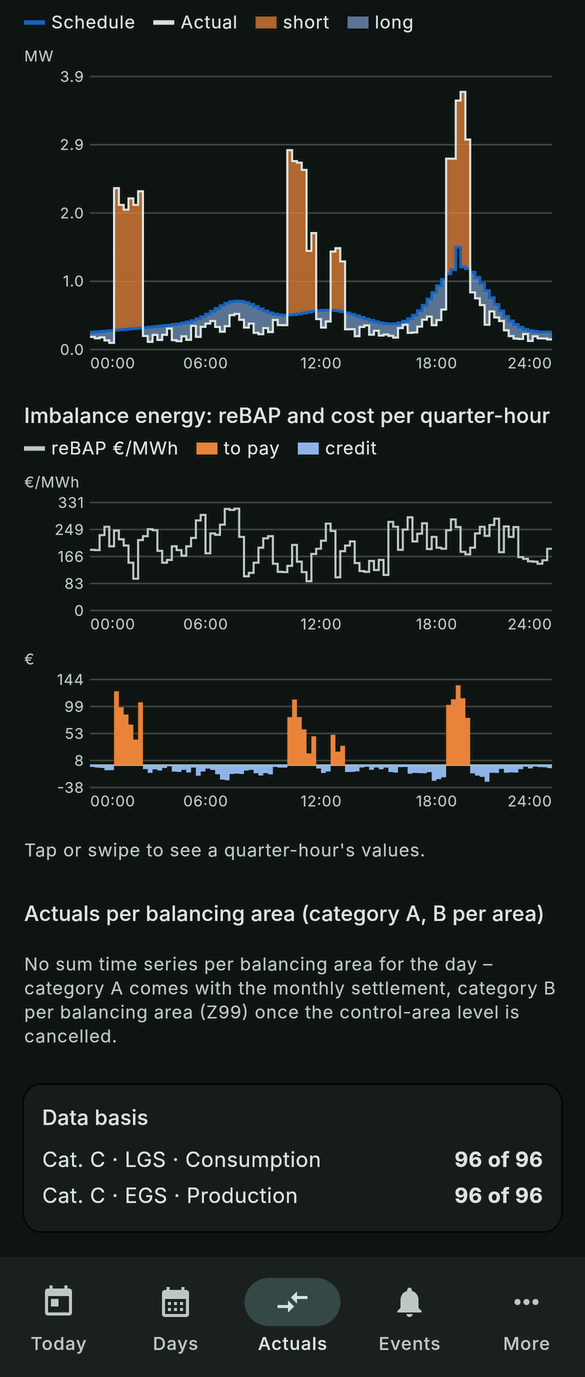
Charts, quarter-hour values and balancing areas
Events
Events
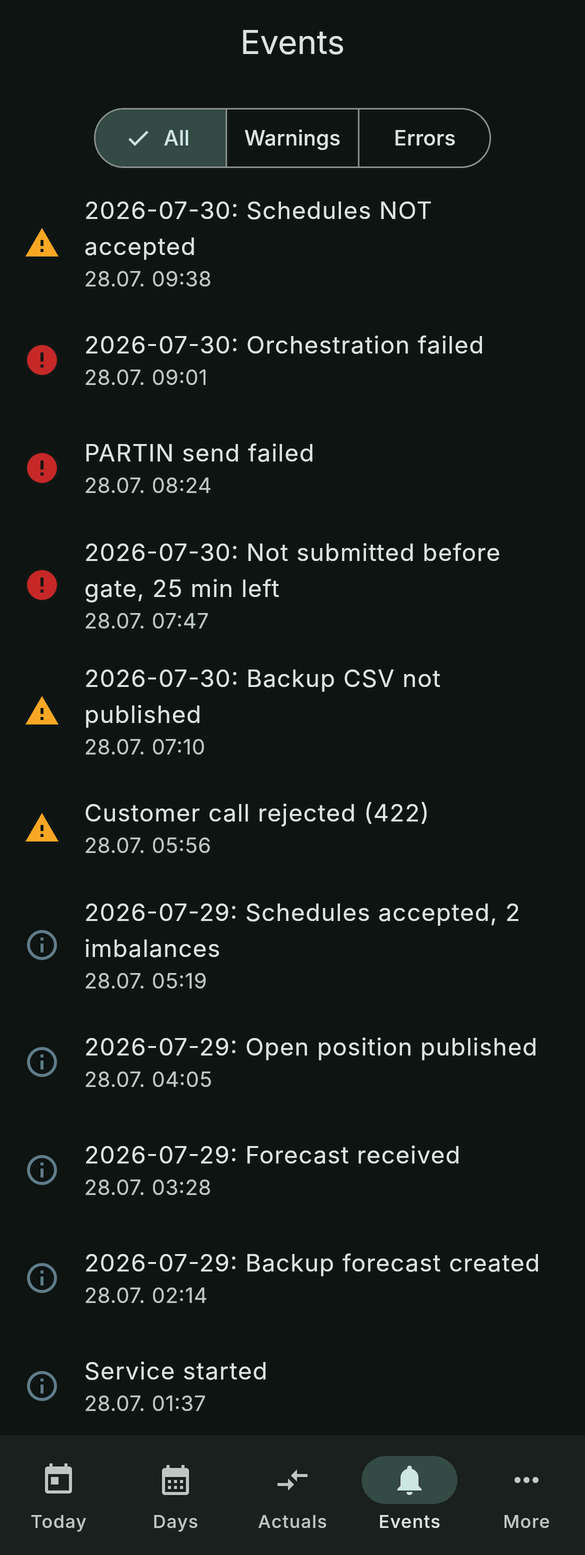
- All, Warnings, Errors filter by level. The icon says the level: information, warning (amber) or error (red).
- A delivery day comes first in the text, the time below.
- Load older at the end pages back.
- If the service’s event log was restarted, the app says that older events are no longer available.
More
More
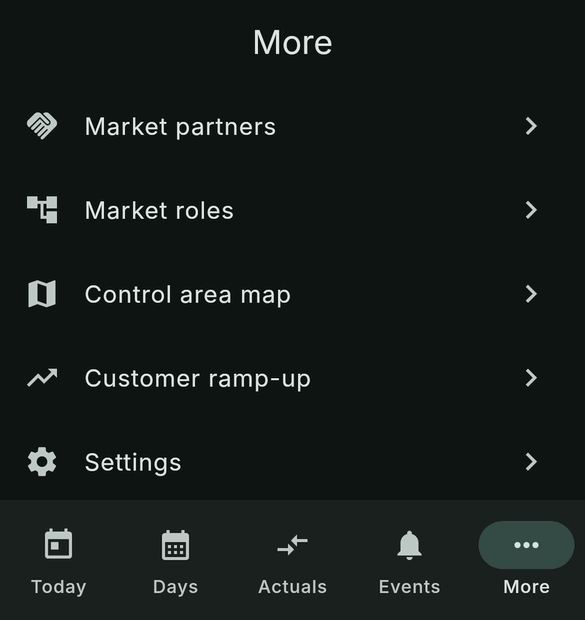
Market partners
The market communication with every network operator, TSO and BIKO, in counts:- All market partners and each control area, with one chip per state: rejection, no contact, contacted, waiting, communication OK, complete, assignment open, assignment accepted, exempt.
- Standing rejections, newest first: the partner, the reason in fixed words (for example APERAK Z29: sender not registered or transmission error (AS4)), its MP-ID, its control areas, the stream (PARTIN, assignment or transmission) and when. The partner’s own text never reaches the app.
Market roles
The balancing group’s roles and contracts, per control area:- Header: the BRP’s and the supplier’s MP-IDs, the balancing group, the customers, how many of the expected time series are active and missing, and the contracts active and missing.
- Legend for the time series: active (filled), expected (outlined), missing for customers (orange), activated, not expected (red outline).
- One card per control area: a ring with the share of expected series
that is active, the customers, and the balance group contract with its
TSO. Tap it to open:
- the BIKO, the ÜNB (TSO) and every NB (DSO) with customers or something open;
- their contracts: BKV (balance group contract), LRV (supplier framework contract), ZV (assignment agreement);
- one chip per time series type (SLS, LGS, EGS, …) in its state.
- The rest only as a count, “N more network operators, nothing open”.
Control area map
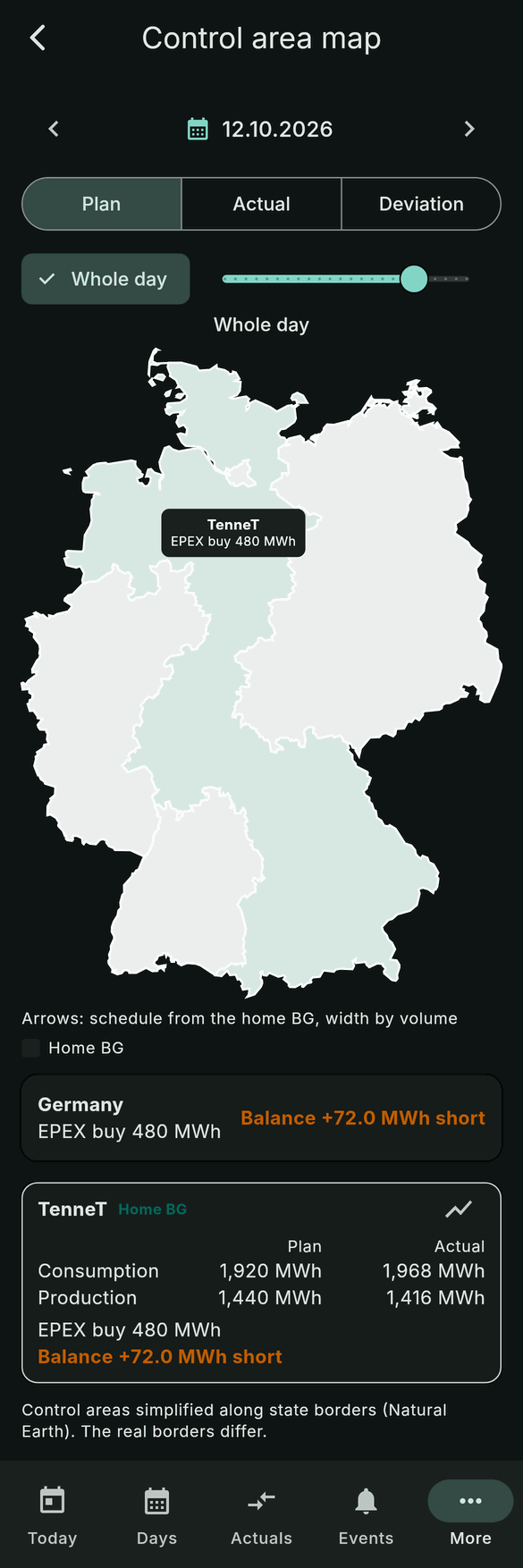
Control area map
- Plan, Actual, Deviation: what each control area shows.
- Whole day in MWh, or one hour in MW with the slider.
- Tap a control area for its label.
- Arrows: the schedule from the home balancing group (Home BG) to the other control areas, their width by volume.
- Cards below: Germany with its EPEX buy or sell and its balance, then each control area with its plan and actual consumption and production. The chart icon opens Schedule vs. actual for that control area.
Customer ramp-up
The customers Cloover has confirmed, per Bilanzierungsgebiet, against the market:- N customers · As of the date of Cloover’s sheet, and the number of urgent areas.
- One card per area: the DSO, its customers, the EIC, the control area, the state of the market communication, the first supply start, the time series types still missing and a missing assignment authorisation.
- Urgent (red outline, !, listed first): something is missing and the first supply start is at most 14 days away, or has passed.
- If Cloover has not sent its sheet yet, or the comparison with the market could not run, the screen says so instead of “nothing urgent”.
Settings
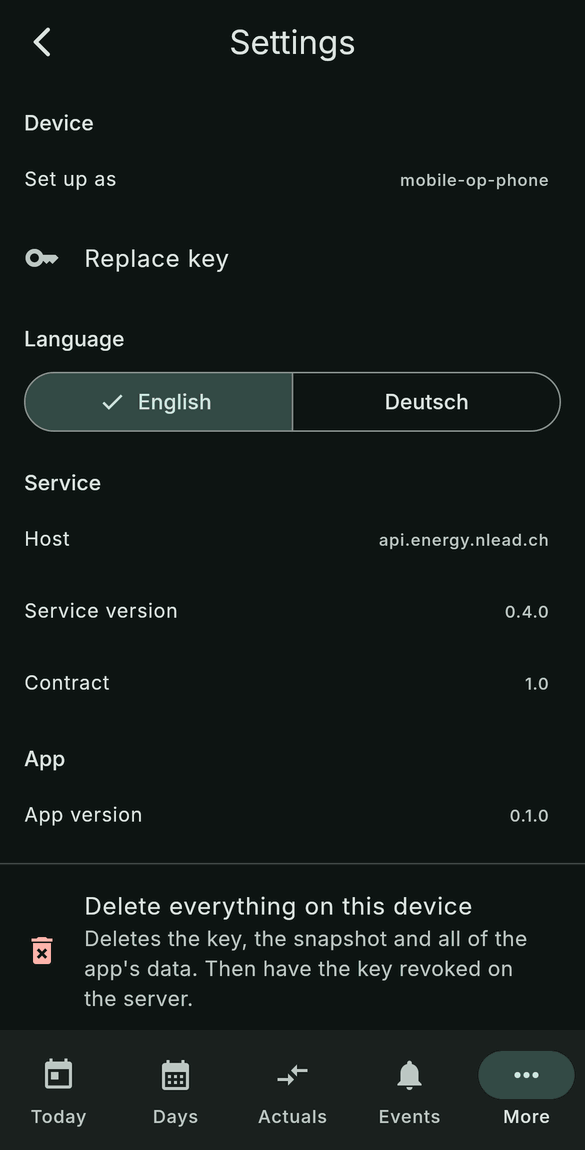
Settings
Widgets, Live Activity and Apple Watch
Widgets and complications change colour on their own as the badge’s
timeline says, even offline. They turn grey once the data is too old.
On the device
- The key is kept in the iPhone’s Keychain or Android’s Keystore, on this device only, never synchronised or backed up.
- Everything else stays in memory and goes with a lock, a refused or deleted key, and when the app is closed. Only the snapshot for the widgets and the watch is stored: the badge, the steps, counts and daily totals, never names or event text.
- Android blocks screenshots and screen recording. iOS cannot, so the app covers its window when it leaves the foreground and hides its data while the screen is recorded or shared.
- Without a screen lock the app locks, stops asking the service and deletes the snapshot.